
The supplier starts a demonstration video. The colours look rich, the movement looks smooth, and everyone around the sample agrees the picture is impressive. Then someone opens the spreadsheet used in the weekly sales meeting. From the back of the room, the decimal values become difficult to distinguish. That is why COB LED display sample testing needs to include everyday office files. A promotional video can demonstrate visual appeal, but it tells buyers little about reading a financial table, following a detailed chart or reviewing a presentation with the lights on. Before approving a COB LED display, test the work the screen will actually support. A useful review connects the sample with the room layout, presentation equipment and information people need to read.
Bring the Files People Actually Use
Ask a few regular meeting participants to contribute representative slides and spreadsheets. Choose material from different tasks, such as a monthly report, a product presentation and a project review. Remove confidential information before sending it to the supplier. Keep the original formatting. Enlarging every label or replacing a dense table with a promotional slide may make the demonstration look better while leaving the original requirement unanswered.
Prepare a short test pack containing:
- A presentation with normal headings, body text and footnotes.
- A spreadsheet with decimal values, totals and highlighted cells.
- A chart with several data series, legends and axis labels.
- A dark slide containing subtle grey details.
- White and neutral grey fields for checking visible variation.
Save an unchanged copy of these files. When a setting changes or another sample is introduced, use the same material so the comparison remains meaningful.
Agree What the Sample Represents
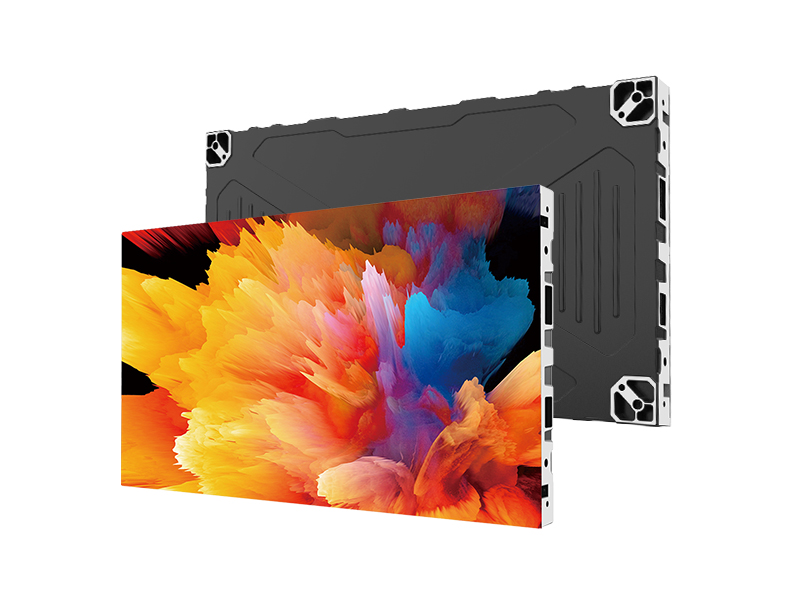
Before the demonstration, ask which model, pixel pitch and controller will be used. Confirm whether those match the quotation. A sample with a finer pitch than the proposed installation may create expectations that the ordered configuration cannot meet. For example, when reviewing an M-COB LED display proposal, have the supplier identify the quoted configuration and explain any differences between it and the demonstration sample. Sample size matters too. A small panel can help buyers examine pixel texture and local image detail. It cannot establish whether an entire spreadsheet will remain readable across a completed meeting room wall. For that assessment, use a representative assembled screen where possible. Record which questions the sample has answered and which still require checking during final installed acceptance.
Read the Screen from Normal Seats
Start with the farthest seat that needs detailed discussion. Open the presentation in slideshow mode and ask a viewer to read specific items without moving closer. Give the viewer a practical task. Can they distinguish 8.3 from 8.8? Can they identify a negative value? Can they tell which line in a chart corresponds to its legend?
Repeat the exercise from side seats and the presenter’s position. Record the file, page and items that were difficult to interpret. “Looks sharp” is less useful than a note explaining exactly what someone could or could not read. If text fails the test, review the whole arrangement before choosing a finer pixel pitch. The screen may be too small for the layout, a shared window may occupy only part of the canvas, or the slide may contain more information than the audience can comfortably follow.
Keep Spreadsheet Zoom Consistent
Spreadsheets deserve their own review because their appearance changes substantially with zoom and window size. Open the workbook at the zoom level normally used in meetings. Check column headings, decimal places, selected cells and totals. Then scroll through the sheet to see whether the presenter can navigate without repeatedly adjusting the layout.
If the team usually compares two windows, test that arrangement as well. A full-screen spreadsheet may look clear, but the same file can become hard to read beside another document. Record the application zoom, desktop scaling and window arrangement. These settings help explain why the same workbook might appear different during a later demonstration. The goal is to find a workable meeting layout. Some detailed sheets may need a prepared summary view, even when the display itself performs correctly.
Use the Planned Laptop and Connection
Where practical, bring the laptop and adapters intended for the room. Ask the supplier to demonstrate the proposed processing arrangement and record the source resolution. Check that the complete image fits. Slide edges should remain visible, circles should remain round, and spreadsheet columns should not disappear outside the active area. A simple border around the test image makes cropping easier to notice.
Test wired and wireless presentation separately if both will be used. A difference between these routes needs investigation before it is attributed to the screen. Keep slide dimensions consistent throughout the comparison. Microsoft’s guidance on changing PowerPoint slide size explains how resizing can affect content placement and scale. Review converted slides before using them as evidence of display performance.
Leave the Meeting Room Lights On
Run the files under the lighting conditions people expect to use. A room may need bright lighting for discussion and a different setting for presentations. Daylight can introduce another variation. Ask the supplier to select a practical operating brightness and record it. Read a white spreadsheet for several minutes, then switch to a dark slide. Check whether both remain comfortable and whether you can distinguish subtle details.
Avoid changing several settings at once. If a grey label is difficult to see, retain the same slide while the supplier investigates. Otherwise, a new image or lighting state can hide the original problem. Repeat a few checks from side seats. Watch for differences that affect the task, such as a chart series becoming hard to distinguish or a faint label losing contrast.
Look Across the Assembled Surface
On a representative assembled screen, place text and graphics across module and cabinet boundaries. Check whether a line appears interrupted or whether neighbouring areas show visible differences in brightness or colour. Use neutral grey fields alongside the real presentation files. Uniform fields can reveal variation that is hard to notice in a colourful photograph.
Document an issue with its location, test file and viewing conditions. A photograph can help the supplier locate it, although camera exposure may alter how it appears. After an adjustment, repeat the original check. Keep unresolved observations in the record rather than replacing them with a general statement that the screen has passed.
Finish with a Clear Purchase Decision
A sample review should leave the buyer with evidence that can be used during procurement and final acceptance.
| Review area | What to record |
|---|---|
| Readability | Files, seat positions and difficult text or values |
| Presentation setup | Laptop output, application zoom and connection method |
| Viewing conditions | Room lighting and display brightness setting |
| Image consistency | Observed variation and retest results |
| Outstanding work | Required action, responsible person and review date |
Connect these findings to the remaining requirements in the COB LED display buying guide, including installation, service access, and quotation scope. When discussing a meeting room with the JR Visual team, provide the layout and representative files early. These give the supplier a more useful starting point than a request for a particular pixel pitch alone. Approve the configuration when the required content is readable from the agreed seats, the presentation setup works as intended and unresolved items have a clear next step. Keep the accepted files and settings for checking the finished installation.