
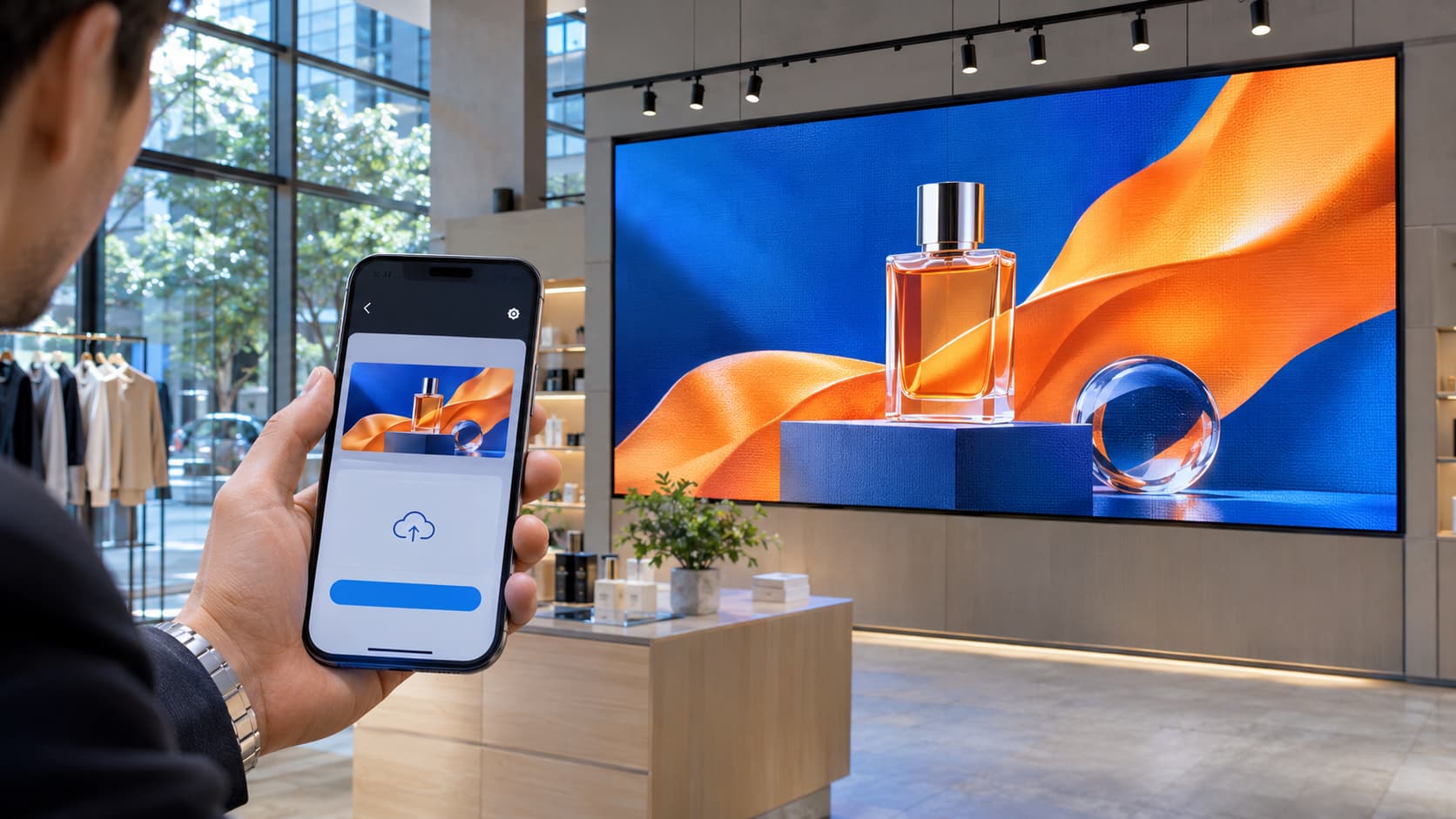
Yes, you can change LED screen content from your phone when the installed player or control system supports a compatible mobile app. The screen needs the right control equipment, connection method and operator access. Having a smartphone—or a screen with a network connection—does not establish that the complete system supports mobile publishing. For a shop updating a promotion or a showroom replacing product videos, the first question is simple: do you want to upload a file, select an existing programme or show your phone screen live? These are different tasks, and buyers should confirm each required function before ordering.
What Do You Want Your Phone to Do?
“Phone control” can describe several functions. Explain the intended task to the supplier so its recommendation addresses the actual requirement.
| Task | What the user wants | What to confirm |
|---|---|---|
| Upload new content | Transfer a photograph or video for playback | Compatible player, app and supported media |
| Select a programme | Choose content already available on the system | Playback controls and operator permissions |
| Schedule a campaign | Set when approved content should appear | Scheduling functions and time settings |
| Mirror the phone | Show the phone’s current screen live | Explicit mirroring support and connection requirements |
| Update another location | Publish without being near the screen | Remote publishing, connectivity and account arrangements |
Uploading a promotional video does not necessarily require the phone to remain connected during playback. Live mirroring is a different use case that needs its own demonstration. When discussing the project with an LED display supplier, describe the action you expect staff to perform. “Our manager needs to replace the weekly promotion using a phone” is a more useful brief than “we need wireless control.”
Check the Player Before Choosing an App
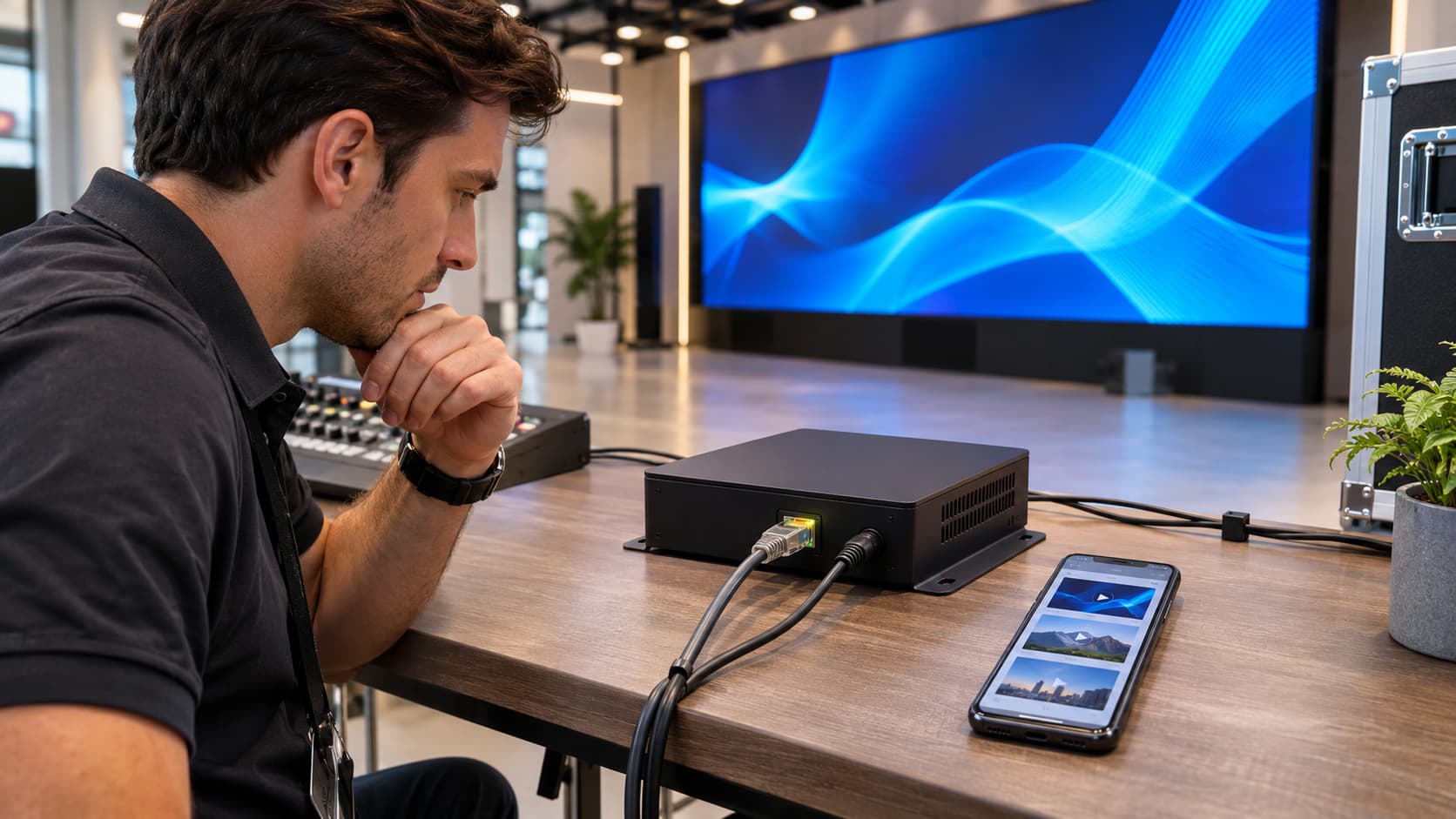
The visible LED surface is only part of the installation. The equipment that receives, manages, and delivers the content determines which mobile functions the system can provide. As a documented example, NovaStar’s ViPlex Handy user manual describes an Android and iOS app for compatible device families. It includes functions for creating and publishing programmes through supported local and cloud arrangements. Compatibility still depends on the selected device and configuration.
That example shows why the controller or player model matters. Installing an app does not make it compatible with unrelated equipment. For an existing screen, collect the player model, software information and handover instructions. Ask the original supplier which mobile functions the installed arrangement supports. For a new project, request a written control-equipment specification alongside the LED display products being proposed. The quotation should identify any hardware, software or services required for the requested function.
Do You Need to Be Near the Screen?
Local and remote publishing solve different problems. Confirm which one the supplier proposes. A local arrangement may suit a shop manager who updates the screen while preparing the premises. Remote publishing may be more relevant when one team manages displays at several locations. The documented ViPlex Handy example distinguishes local device connections through supported Wi-Fi or LAN arrangements from cloud publishing over the internet. That distinction applies to the compatible system described in its manual.
Ask the supplier to explain the proposed route in plain language. Does the phone connect directly to the player, join an approved local network or publish through a remote service? Also identify who supplies the required connection. If a venue or customer network forms part of the plan, confirm that arrangement with its responsible team. Avoid treating a successful demonstration beside the screen as proof that staff can update it from another city. Test the location and connection method that normal operation will require.
How to Change LED Screen Content from Your Phone
The exact menus depend on the supplied system. Use its instructions rather than following a sequence intended for a different player or app version.
For a compatible mobile publishing system, a practical operating routine is:
- Prepare an approved file. Use the supplier’s media requirements and confirm that the file is available on the phone.
- Connect through the agreed method. Follow the installed system’s local or remote access instructions.
- Select the intended display. Check its identifying details before publishing.
- Create or select the programme. Review the layout, order and timing supported by the system.
- Publish and check the result. Confirm that the intended content appears correctly on the actual screen.
Keep an accepted programme available while testing a replacement. Ask the supplier how the operator can restore it using the supported process.
At handover, have the intended staff member perform the complete task. That provides better evidence of usability than watching an installer complete it.
Can You Upload Any Photo or Video?
Do not assume every file on a phone will play correctly. Ask for the supported media types and the limits relevant to the proposed player. A filename alone may not describe all the characteristics of a video. Give the supplier representative files and request a playback test before producing a full campaign. Confirm the required canvas dimensions and layout as well. A portrait photograph, a landscape video and a wide display may need different compositions.
Ask how the system handles scaling and cropping. Check that product details, prices and other important information remain within the visible area. For an indoor LED display, test content from the audience’s normal position. A preview on the phone can’t show how small wording will look on the installed screen. Keep the original design files so the team can revise the composition without repeatedly editing an already compressed copy.
Uploading a Video Is Different from Live Mirroring
A stored-content arrangement and a live phone view require separate consideration. Decide which one supports the intended experience. For a recurring retail promotion, the priority may be publishing an accepted programme and confirming its playback. A presenter demonstrating a phone application may instead require live mirroring. Ask the supplier to show the exact task. Do not accept a demonstration of file upload as evidence of mirroring, or the reverse.
If mirroring is required, review the proposed connection with the phone models and content the team expects to use. Include any presentation material that needs specific playback support. For uploaded content, ask what happens after the phone disconnects and after the display system restarts. Confirm the behaviour on the supplied configuration. These checks help the buyer select the right control arrangement rather than choosing a screen based on a general “phone compatible” description.
What If the New Content Does Not Appear?
Start by identifying where the process stopped. A connection problem, an unsuccessful transfer and an unexpected playback programme call for different checks. Record what the app reports and what the screen actually shows. Include the target device, file reference and time of the attempt. Check that the operator selected the intended display and followed the accepted publishing process. Then review whether the programme has an assigned playback time or another relevant selection.
Compare the new file with a known working example. If one plays and the other does not, provide both references so support can assess the difference. Avoid resetting the complete display system as a first response. Follow the supplied troubleshooting and restoration instructions. A useful support request describes the attempted task, the observed result and any recent changes. This gives the supplier more to investigate than “the phone does not work.”
Confirm These Details Before Ordering
Mobile content updates should form part of the purchase brief when staff expect to use them regularly.
Ask the supplier to confirm:
- The player or controller and compatible mobile app.
- Supported phone operating systems and relevant versions.
- Local publishing, remote publishing and mirroring requirements separately.
- Representative media compatibility and layout preparation.
- Account access, operator responsibilities and any service costs.
- Playback behaviour after disconnection and restart.
- Training, support and the accepted-content restoration process.
Request a demonstration using a normal staff phone and your own sample content. The operator should complete the intended task through the same connection arrangement planned for everyday use. For a project-specific control recommendation, explain the screen location, number of displays, update frequency and whether staff will work locally or remotely. Those details help define the control package before the equipment order becomes final.
Phone Updates Depend on a Compatible, Tested System
You can change LED screen content from your phone when the complete installation supports the required task. The player, app, connection and operator access need to work together. Choose the function first: upload a file, select a programme, schedule playback or mirror a live screen. Then ask the supplier to demonstrate that function with representative content. An accepted test and clear operating instructions give staff a practical basis for future updates. That is more useful than assuming all LED screens provide the same mobile controls.