
Transparent LED film inspection should reveal where the installed image no longer matches the approved layout. A product outline may jump at a module boundary, a section may repeat the wrong part of a video, or a thin line may disappear near a seam. A colourful demonstration reel can conceal these problems until the customer plays normal content. Use the approved layout and a small set of controlled test patterns to check the image. Record the affected location before changing anything, then ask the responsible installer or control technician to investigate. Keep physical alignment, source content, and screen mapping as separate checks so one adjustment doesn’t hide another fault.
Prepare a reference for transparent LED film inspection
Collect the final active pixel dimensions, module layout, screen orientation and agreed viewing positions. Mark mullions, module boundaries and intentional non-display areas on the drawing. Confirm which side the drawing represents: an audience-side view can appear reversed when compared with an installer’s view from the other side of the glass. Keep a copy of the current approved control configuration before testing. Record the controller, receiving hardware, software version and source resolution. Ask the technician to confirm the test path so the team knows if a pattern comes from the media player, processor or receiving system.
For a transparent LED film screen, the selected module format and installation arrangement belong in that reference. StarLink supports glass attachment or a frame structure. Its poster-style assembly description also includes module connectors and securing clips. Inspect the supplied arrangement against the approved drawings and installation instructions.
Check LED film seam alignment from the audience side
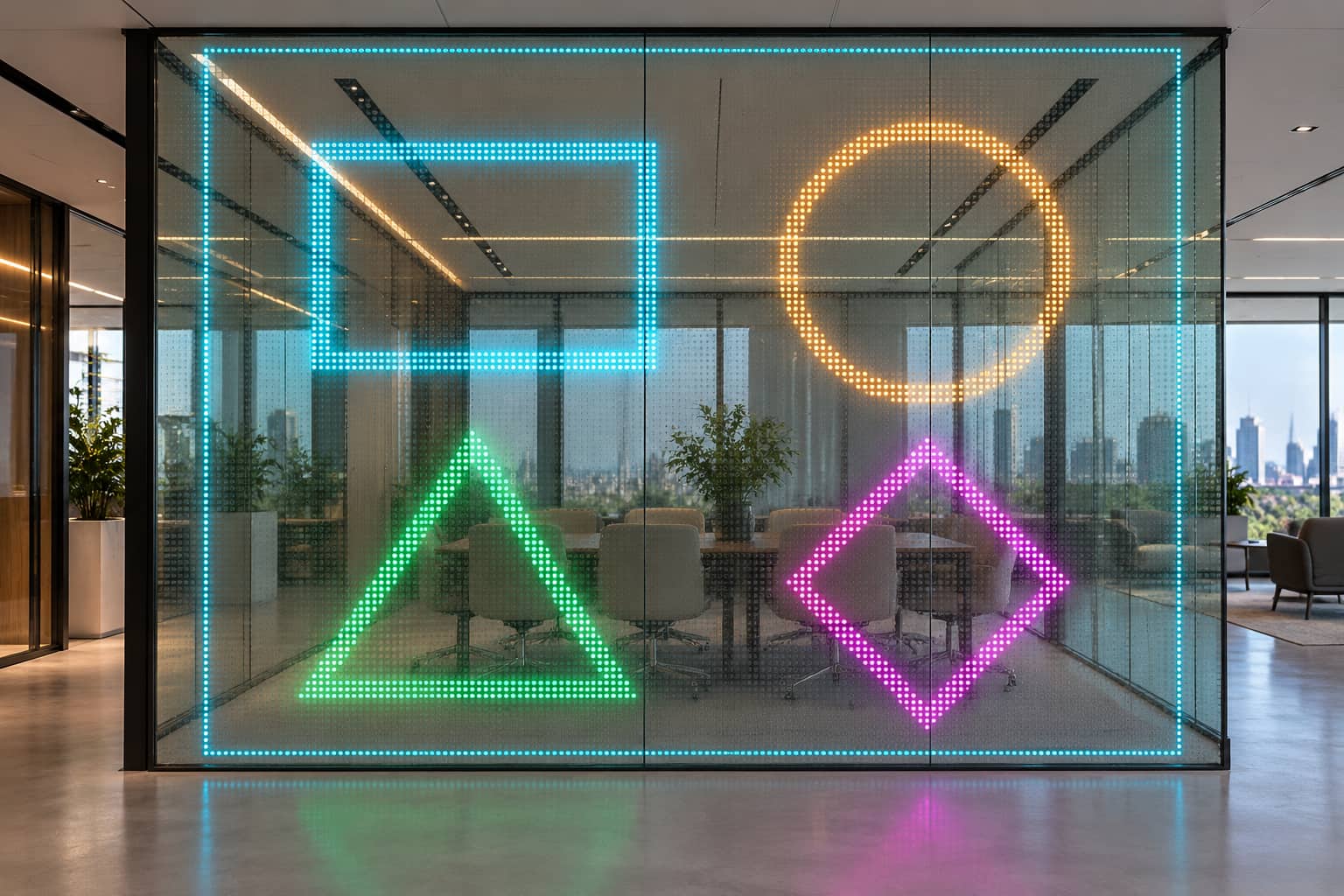
Begin with the display off. Look for visible steps, uneven module placement, damaged edges, and irregular spacing compared with the drawing. Compare adjacent sections from a consistent viewing position. A glass joint or mullion may create a planned interruption; record that separately from an unexpected installation defect. Next, show horizontal and vertical lines crossing the module boundaries. Use lines wide enough to remain visible at the selected pitch, then inspect the continuity across each seam. Add a simple border around the active canvas to reveal unexpected cropping or an edge that appears in the wrong position.
A line that shifts at a boundary may involve physical alignment, assigned coordinates, or content scaling. Check the drawing and visible module positions before deciding on a correction. Avoid pushing, trimming or removing film to solve an image symptom without the installer’s assessment.
Use pixel mapping patterns before normal content
Create a test canvas at the approved active resolution. Use clearly different colored areas, a simple directional shape, and a grid that matches the documented module layout. Keep the same file and playback settings throughout the comparison. A repeating texture is less useful because an incorrectly repeated section can look normal. Have the operator check that each area appears once, in the correct position and orientation. Look for swapped regions, duplicated sections, missing rows or columns, and a border that shifts between neighbouring modules. Then move a broad line slowly across the screen to inspect continuity during playback.
The official NovaLCT screen connection and mapping documentation describes screen connection settings, receiving-card dimensions, mapping and test functions. On a compatible installation, these tools help the technician compare the configured arrangement with the physical screen. Use the manual for the installed version; a different control platform may organise the same checks differently. If the source grid appears stretched, first check source resolution, processor scaling and the agreed canvas. If a whole region appears in the wrong place, have the technician compare the configured connection order and coordinates with the layout. Treat these as investigation paths rather than conclusions drawn from one photograph.
Separate image faults from expected transparent display gaps
A transparent LED display contains visible spaces between its light-emitting elements. Inspect image continuity against the approved module design and project sample. Do not classify every visible gap as a faulty seam, or assume a dark strip is intentional simply because the screen is transparent. Solid red, green, and blue patterns can reveal whether a symptom affects a particular colour channel. Several grey levels can expose a strip that is less obvious in bright content. Record the pattern, brightness setting and viewing position together so the next person can reproduce the observation.
| Observed symptom | Possible area to investigate | Next check |
| A line jumps at a seam | Physical alignment or assigned position | Compare drawing, module edges and coordinates |
| One image area repeats | Content layout or screen mapping | Compare unique test areas with the connection map |
| A border is cropped | Canvas size, scaling or active-area definition | Check source dimensions and output settings |
| A row or column stays dark | Planned gap, signal path or module fault | Check layout and technician test results |
| A coloured strip appears | Colour response, configuration or hardware | Compare solid-colour patterns and record location |
The symptoms above do not identify a failed component on their own. Keep configuration changes and hardware work with the responsible technician, following the approved service procedure. Retest after each documented correction instead of changing several settings at once.
Use a StarLink project reference to define inspection scope
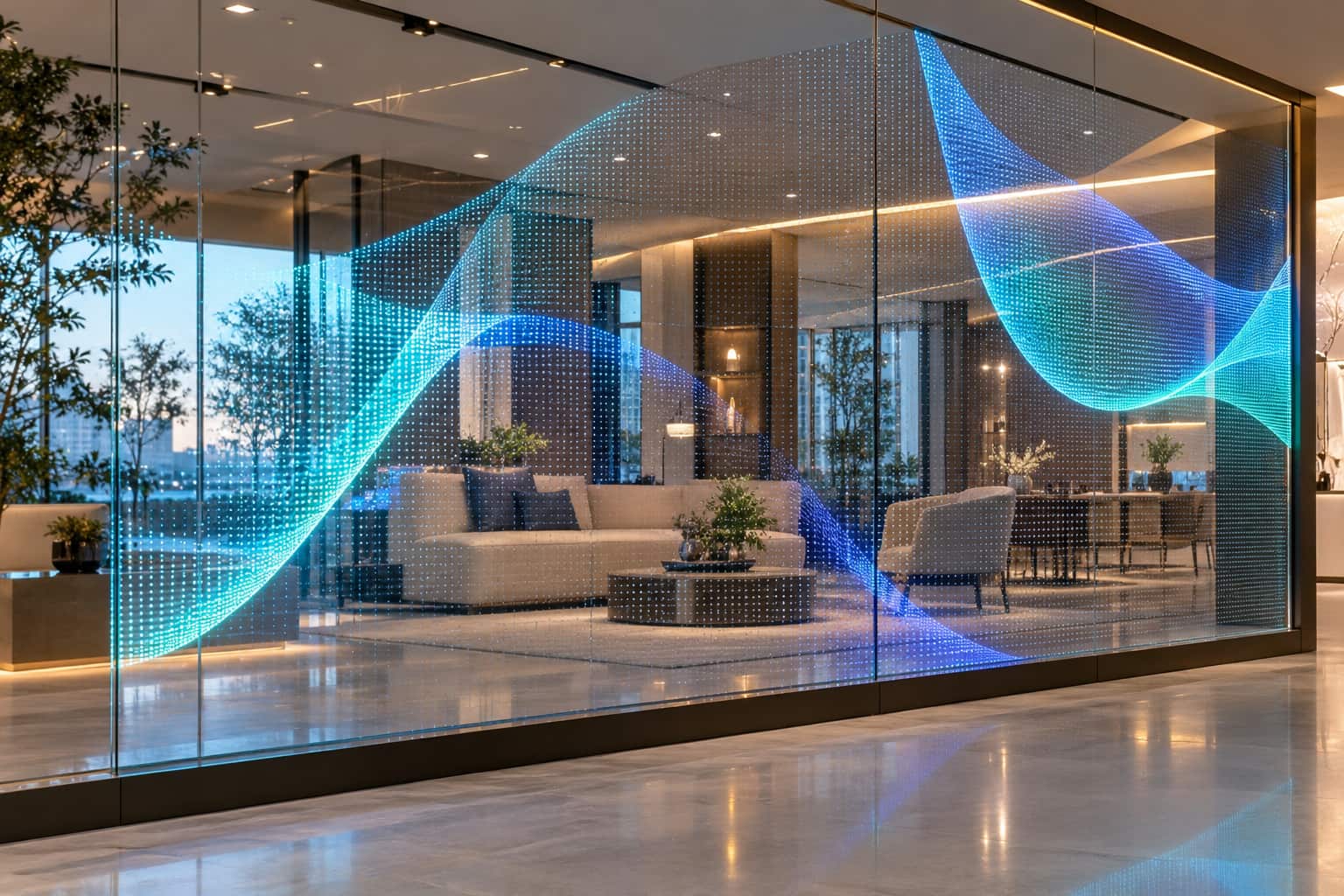
Our published StarLink installation at ATM 2024 identifies 66 square meters of P3.9 transparent LED film at Dubai World Trade Centre. It shows the product used across a substantial exhibition display area. For a new installation with multiple sections, divide the inspection drawing into identifiable zones. Assign every observation to a zone and module boundary so the installer and control technician can find the same location. A project photograph can illustrate the application, while the actual inspection still follows the new project’s layout and acceptance criteria.
Record transparent LED film inspection results for retesting
Give each issue a reference and keep its position consistent with the drawing. Record the test file, visible symptom, proposed investigation owner and next action. Photograph the whole zone and close-up details; a close-up alone may leave the technician unable to locate the fault.
| Record field | What to include |
| Location | Zone reference, module boundary and audience-side photograph |
| Test conditions | Pattern file, playback path, settings and viewing position |
| Observed issue | Visible symptom without an assumed diagnosis |
| Action and owner | Assigned person, agreed investigation and correction record |
| Retest result | Same-pattern comparison, remaining issue and reviewer decision |
After correction, repeat the same pattern before switching to representative customer content. Check that the original symptom has cleared and that neighbouring sections remain correct. Where the approved procedure allows, include a controlled restart and confirm that the saved configuration retains the accepted image.
Seam alignment and pixel mapping need a documented recheck
Accept the image when the approved layout, controlled patterns and normal content tell the same story: sections appear where intended, boundaries behave as agreed and unresolved issues have a clear disposition. Use the project’s specified tolerances rather than inventing a universal seam width or pixel-defect limit. When reviewing results with your LED display supplier, share the zone drawing, test files and repeatable observations. Those records make it easier to identify the next action and confirm its result before the installed display is signed off.